
- Log in to your WordPress dashboard.
- Go to Pages > All Pages and find the page you want to revert.
- Hover over the page title and click Edit with Elementor.
- Once in the Elementor editor, locate the History icon at the bottom/top of the left panel (a clock icon).
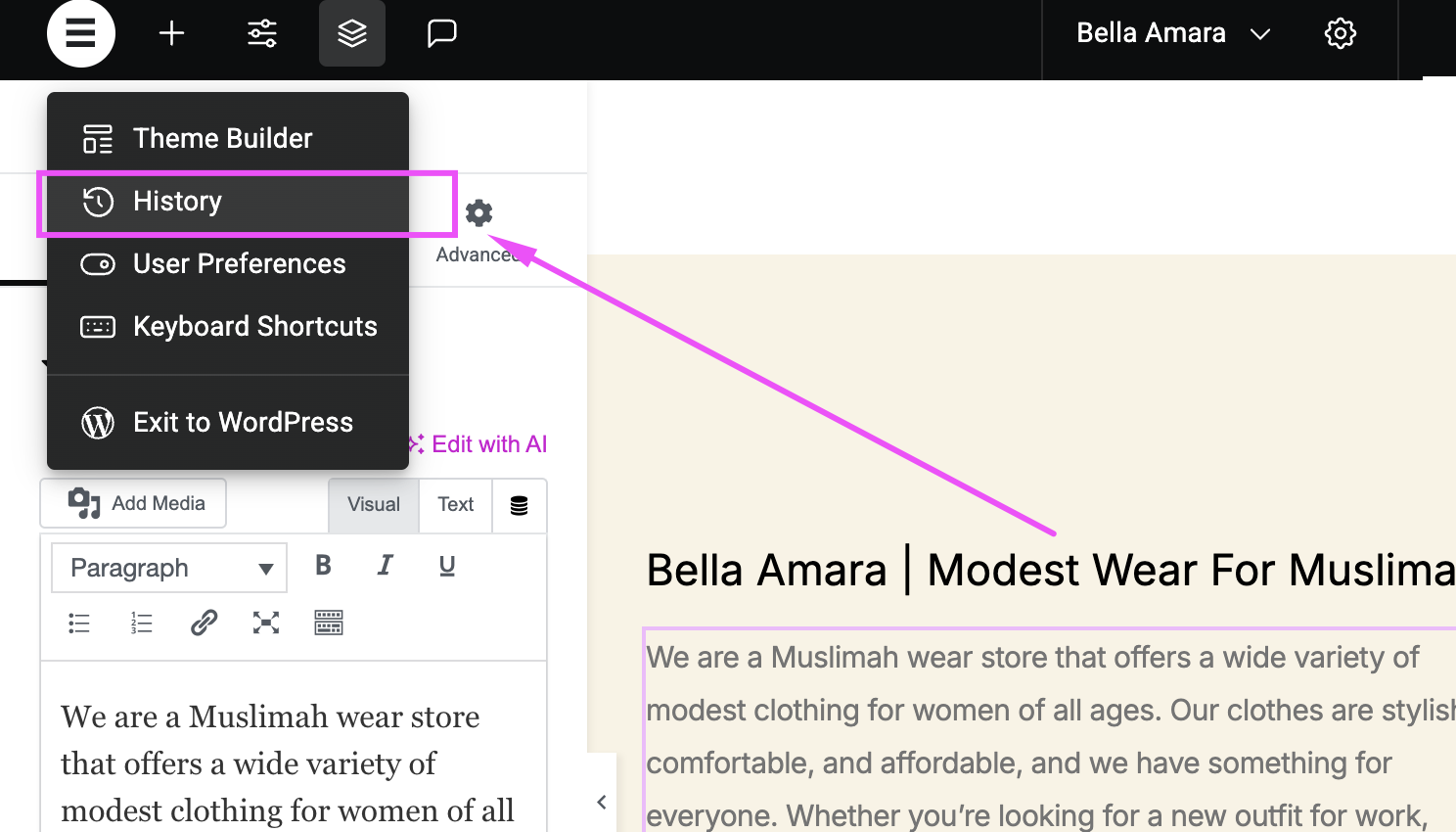
- Click the History icon to open the Actions and Revisions panel.
- Actions: Displays changes made in the current session.
- Revisions: Shows previously saved versions of the page.
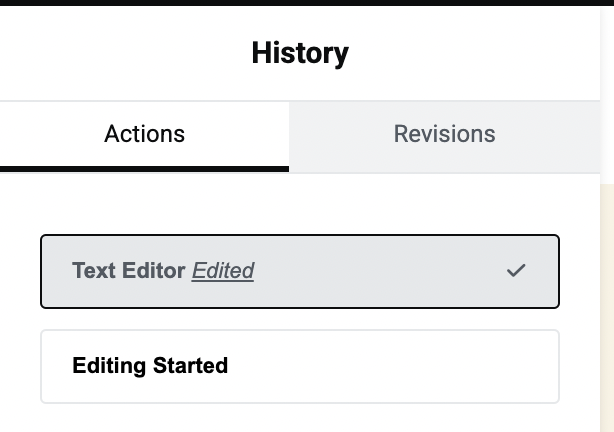
- Click on the Revisions tab to see the list of automatically saved versions.
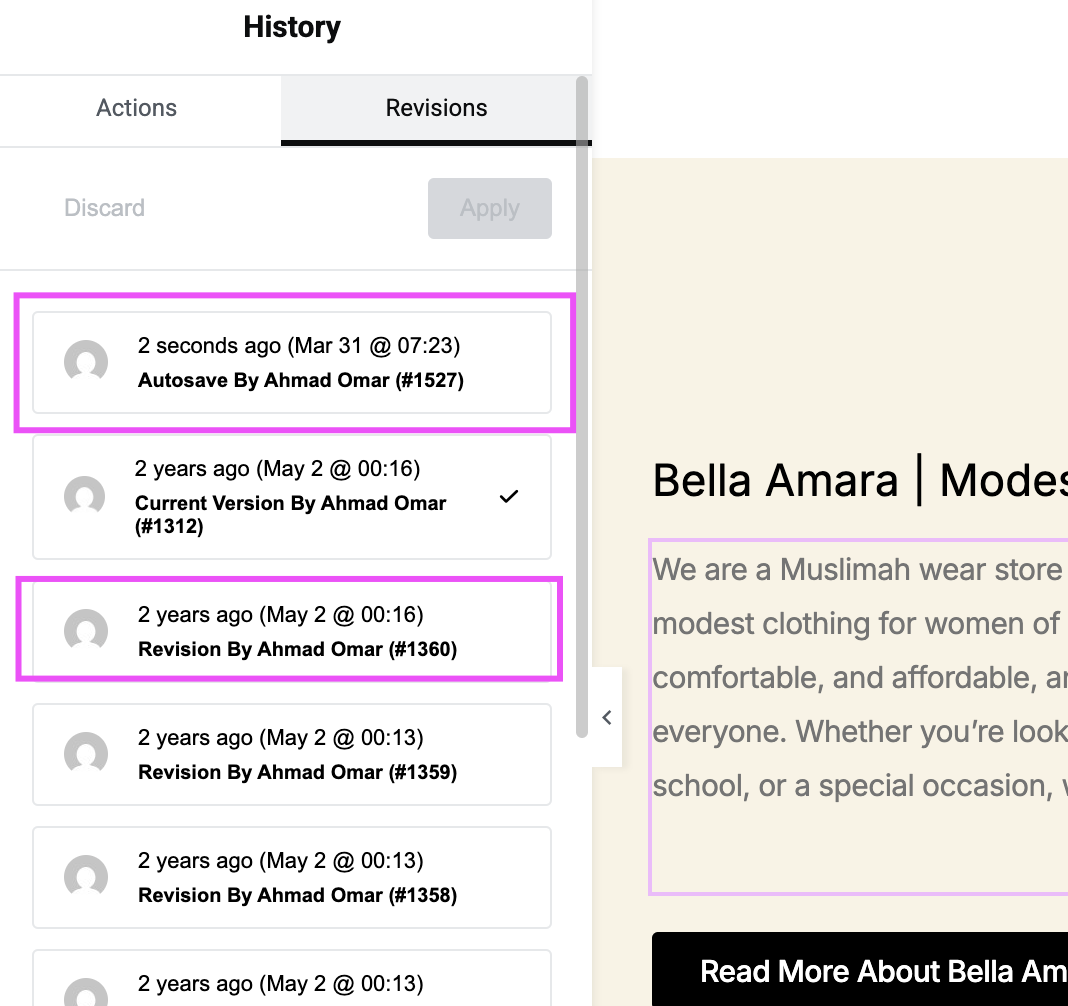
- Select the version you want to roll back to. You can preview the version before restoring it.
- Once you find the right version, click Apply to restore that version.
- Click the Update button to save your changes.
If you encounter any issues with rolling back your design, please email at support@lamanify.com.


