
Step 1: Log in to WordPress Dashboard
- Go to your website’s admin panel (usually www.yourwebsite.com/wp-admin)
- Enter your admin username and password
Step 2: Access WooCommerce Orders
- From the sidebar, click on WooCommerce > Orders
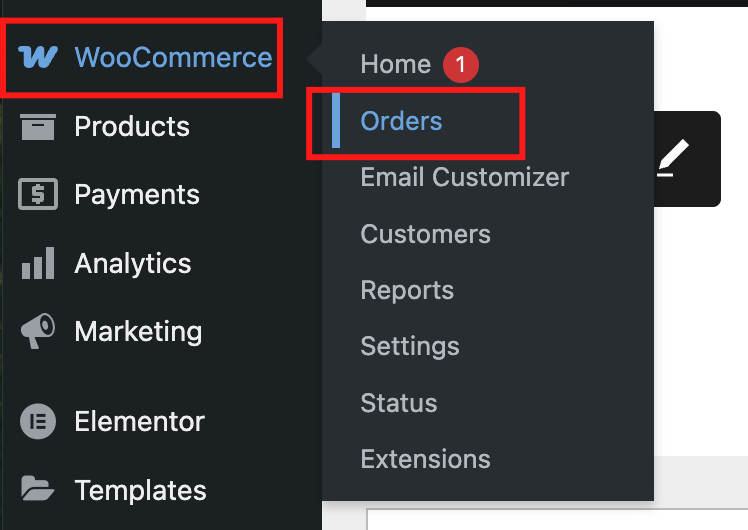
- You will see a list of all orders placed by your customers
Step 3: Review Order Details
- Click on an individual order number to open order details
- Review billing and shipping information
- Check payment status (e.g. Processing, On Hold, Completed)
Step 4: Update Order Status
- After confirming payment and stock, you can manually change order status:
- Processing – Payment received, preparing order
- Completed – Order fulfilled and shipped
- Cancelled – Order was cancelled by admin or customer
- Refunded – Order was refunded
- Note: If you are using a payment gateway (e.g. Billplz, SenangPay, Stripe), the order status will automatically be marked as Completed once the payment is successful.
Step 5: Add Order Notes (Optional)
- Use the Order Notes section to communicate with the customer or keep internal notes
- Customers will be notified if you select “Note to Customer”


